
Article History
Updated March 4, 2026 · Adam Yong
Find all your generated articles under History -> View & Download Articles.
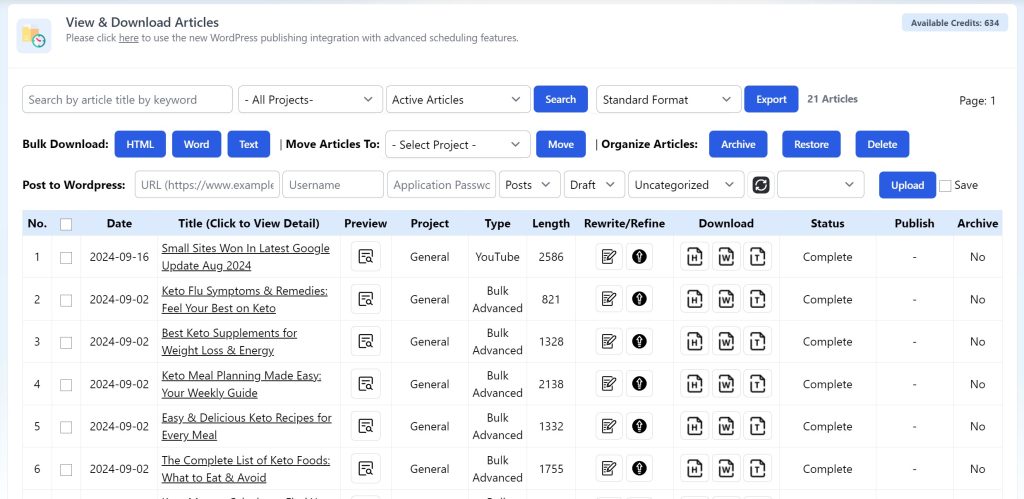
Search & Download Articles
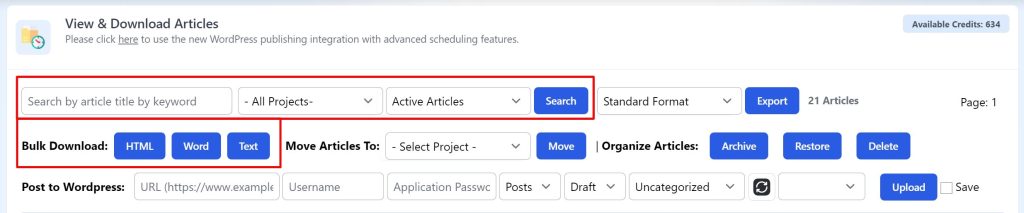
- Use the search panel to easily find and filter your articles.
- Utilize the Active/Archive dropdown to retrieve previously archived articles.
- Download individual articles in HTML, Word, or text format, or download in bulk.
CSV Export
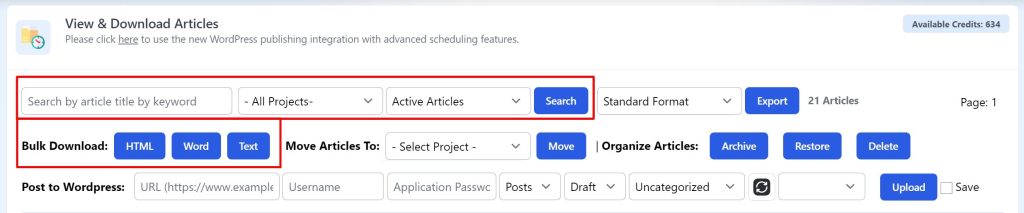
Export articles in CSV format with three options:
- Standard – Export all article details.
- Split by Headings – Split the article content by headings, ideal for mass page generator plugins to create bulk, well-structured location landing pages.
- Split by Headings (Remove H. Tag) – Same as “Split by Headings,” but without the heading tags.
Organize Articles
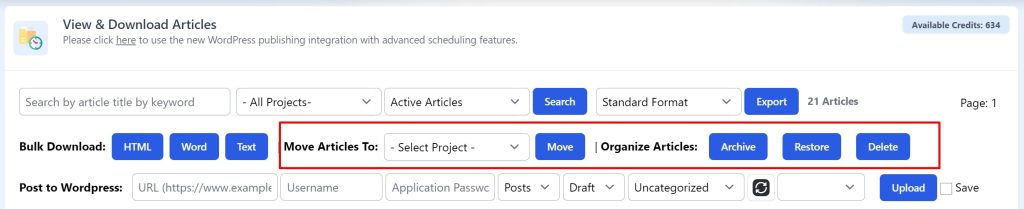
- Use Projects to organize your articles. You can move articles between different projects.
- Archive old or published articles to keep your history section clean.
- Search and restore archived articles to reactivate them when needed.
WordPress Publishing
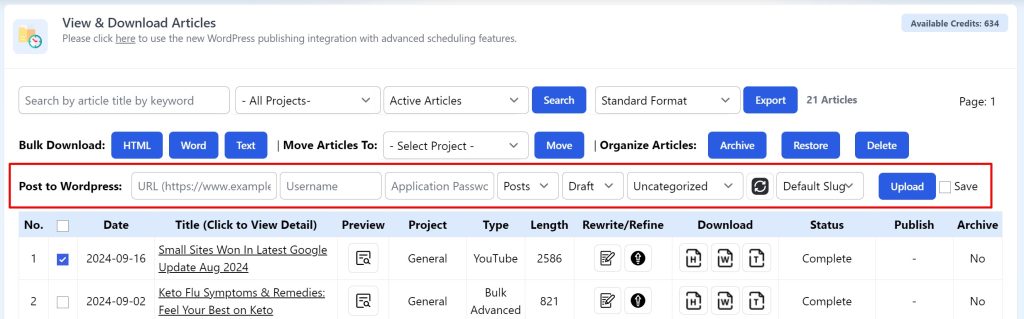
- Quickly publish articles to your WordPress site without setting up a plugin. Learn more here.
- Alternatively, directly publish articles using the Agility Writer Plugin with this guide.
Preview Article
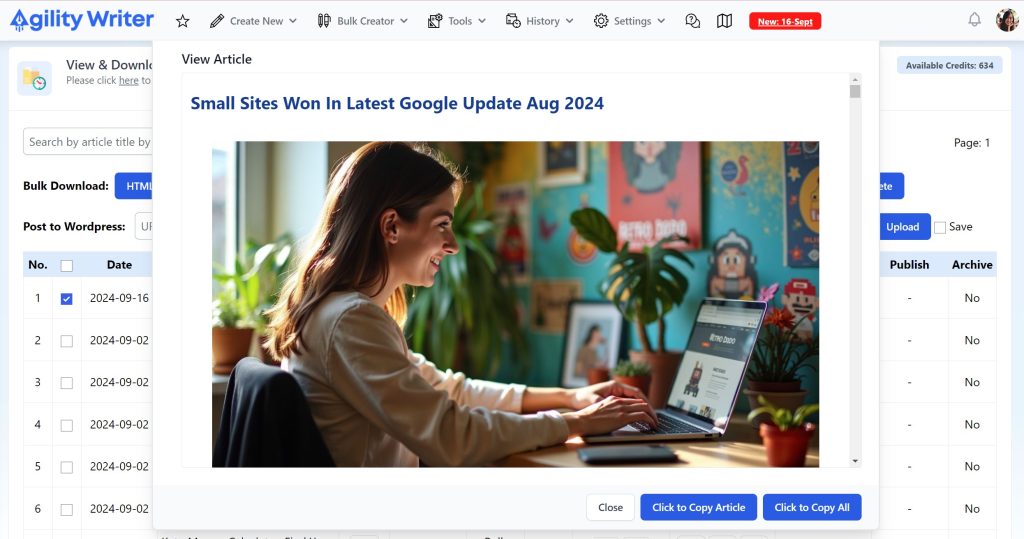
- Click the quick view icon to view and copy articles.
View Article Details
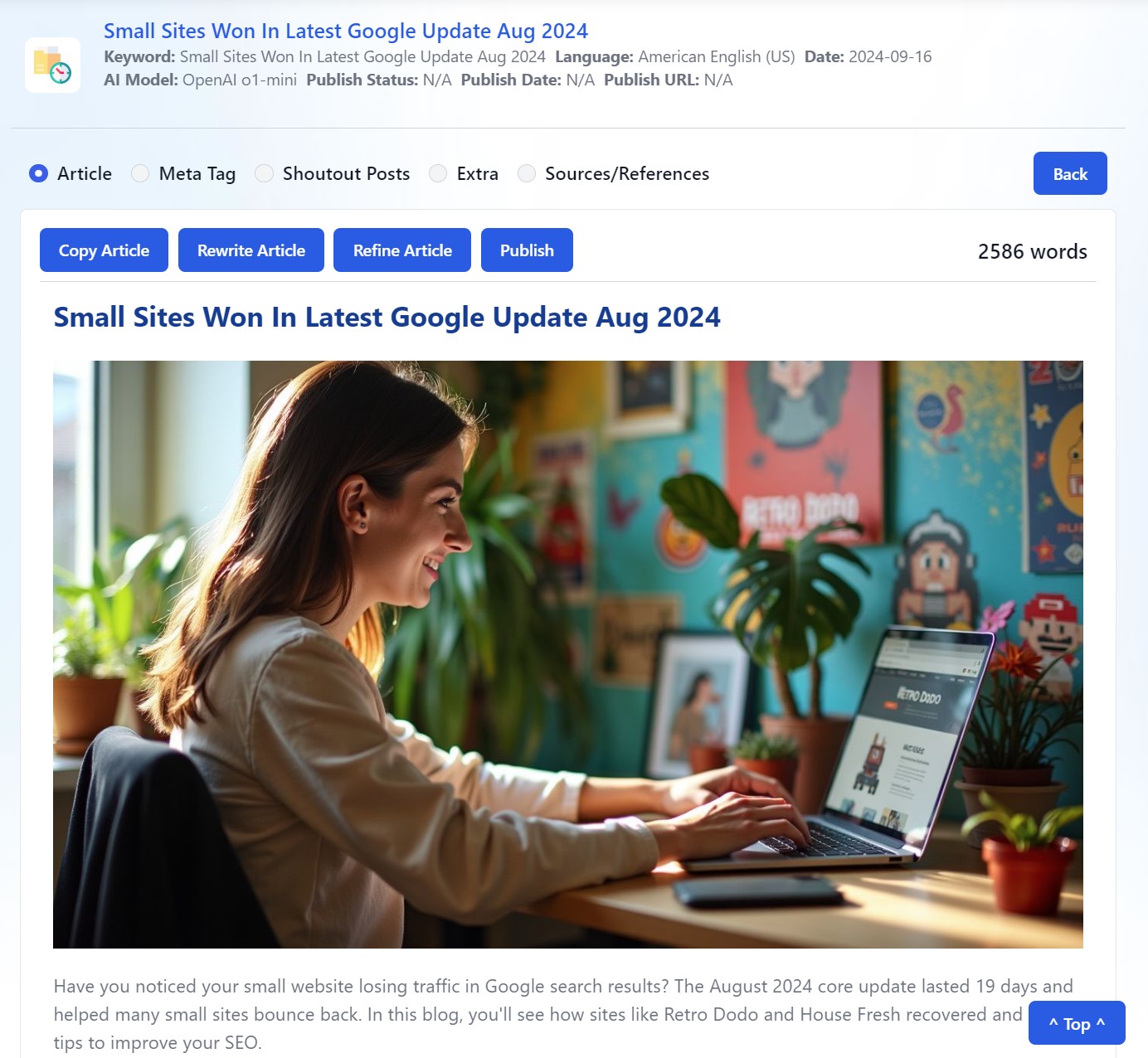
- Click the article title to view it in full-screen mode.
- The article detail screen has five sections:
- Article – View and publish the article.
- Meta Tag – Displays the meta title and meta description.
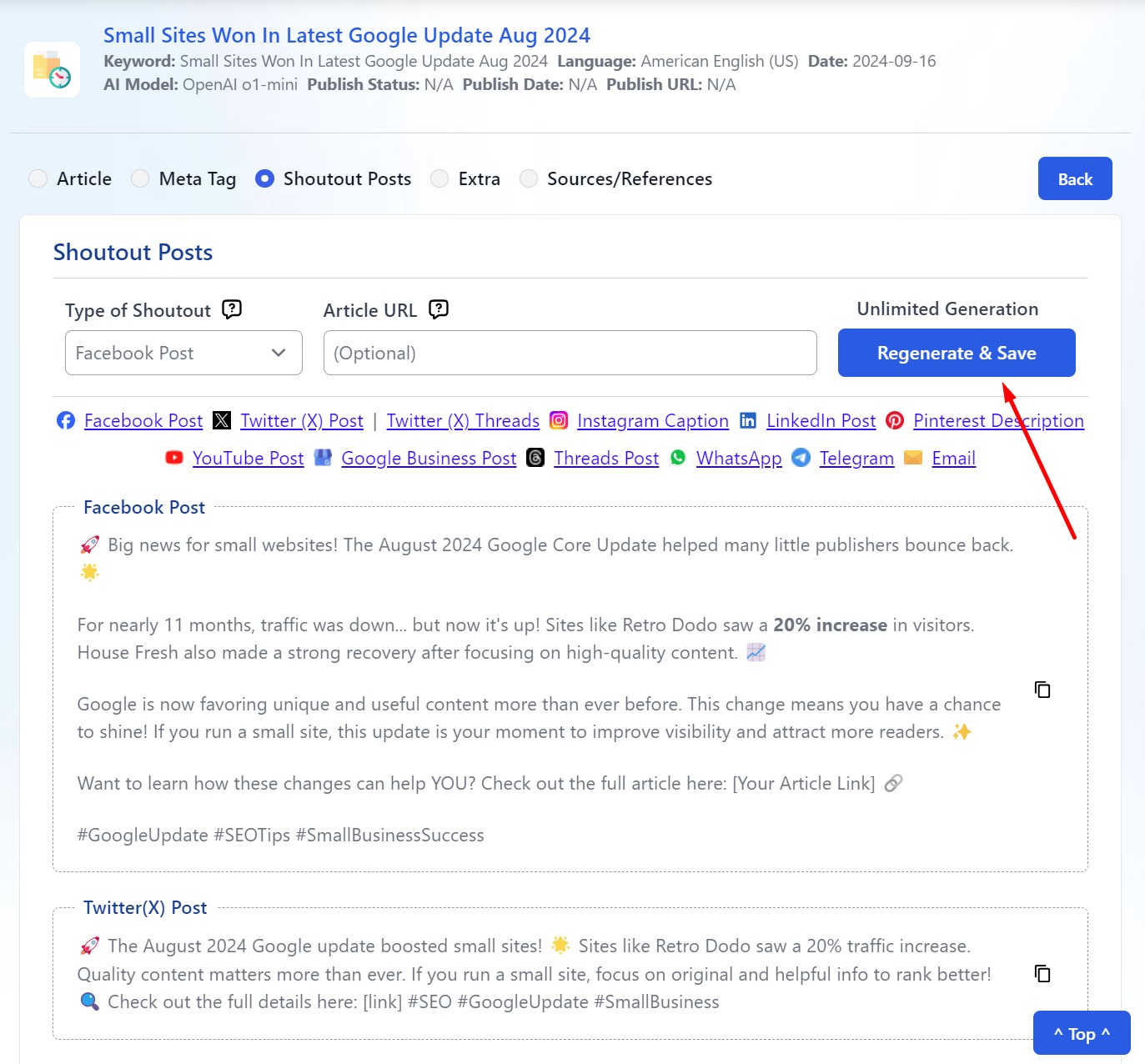
- Shoutout Post – View and regenerate posts for up to 12 social media platforms. Learn more here.
- Extra – Displays keywords and image prompts (if applicable).
- Sources/References – Contains all references and links used in the article.
Still need help?
Browse the full help center or start writing on a $1 trial.