New: Smart Writer, Context-Aware Visuals, Site Structure Audits
Beta

Smart Visual AI & Reference Library

Reads your article, decides which visuals it needs, generates photos, charts, and infographics, and places them at the right spots automatically.

Smart Visual AI and Reference Library in Agility Writer
★★★★★ 4.7 (33+ Trustpilot)
5,000+ active users
Articles in minutes
15+ years SEO consulting

Most AI writers leave the visuals to you

You write the article, then start a second job: prompting an image tool, generating charts by hand, and placing every picture yourself, all while trying to keep faces and style consistent.

Images created separately, with custom prompts for each one

Charts and data visuals built by hand from your own numbers

No easy way to keep the same face or look across an article

What Smart Visual AI gives you

No prompt engineering

Smart Visual AI reads the content around each spot and decides the image type itself, so you don't write prompts.

Consistent faces and style

Face cloning keeps the same person across every visual in an article, which suits personal blogs, tutorials, and product demos.

Data becomes charts

It extracts numbers from your text and turns them into charts, graphs, and infographics automatically.

Smart Visual AI in 3 steps

01 / 03

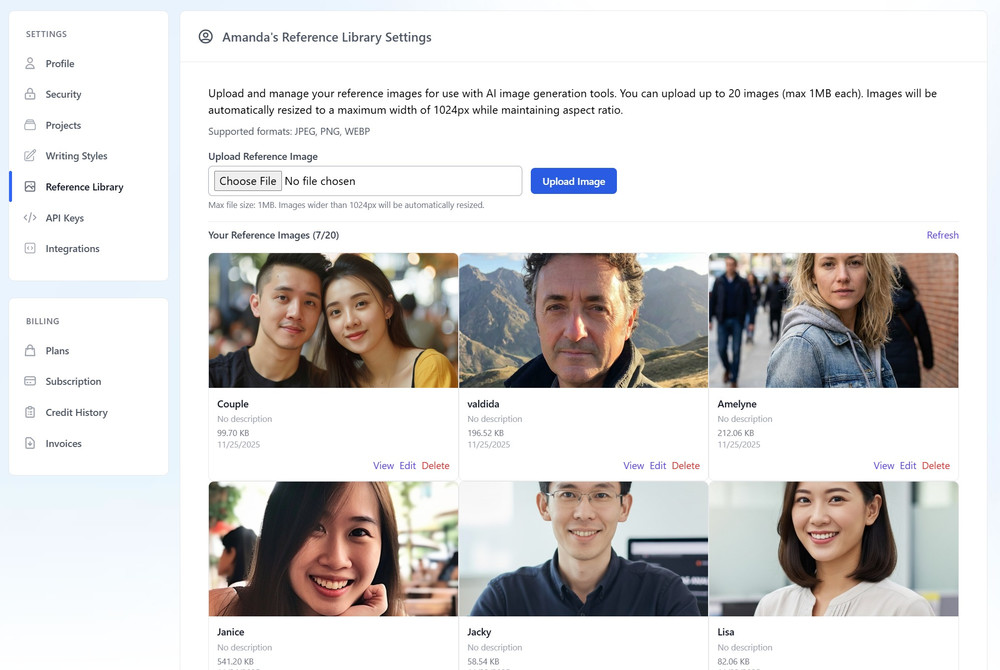
Upload your reference images

Go to Settings, then Reference Library. JPEG, PNG, or WEBP, up to 1MB each, up to 20 images, and anything wider than 1024px is resized automatically. Give each one a reference name, like Sarah Headshot, and a short description of up to 150 characters.

Smart Visual AI step 1: Upload your reference images
02 / 03

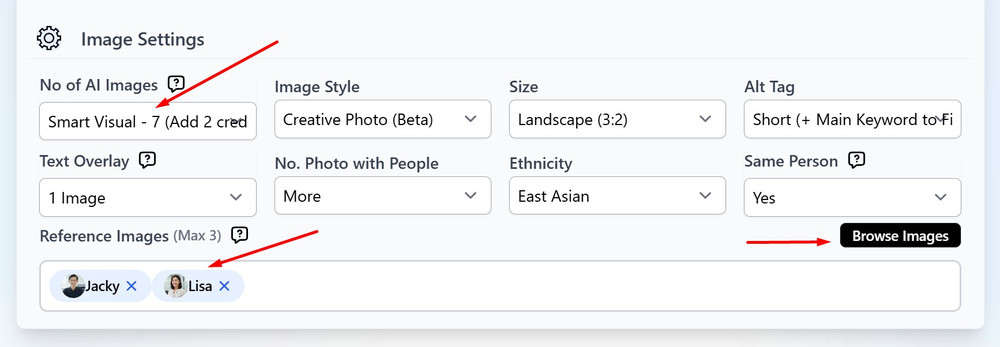
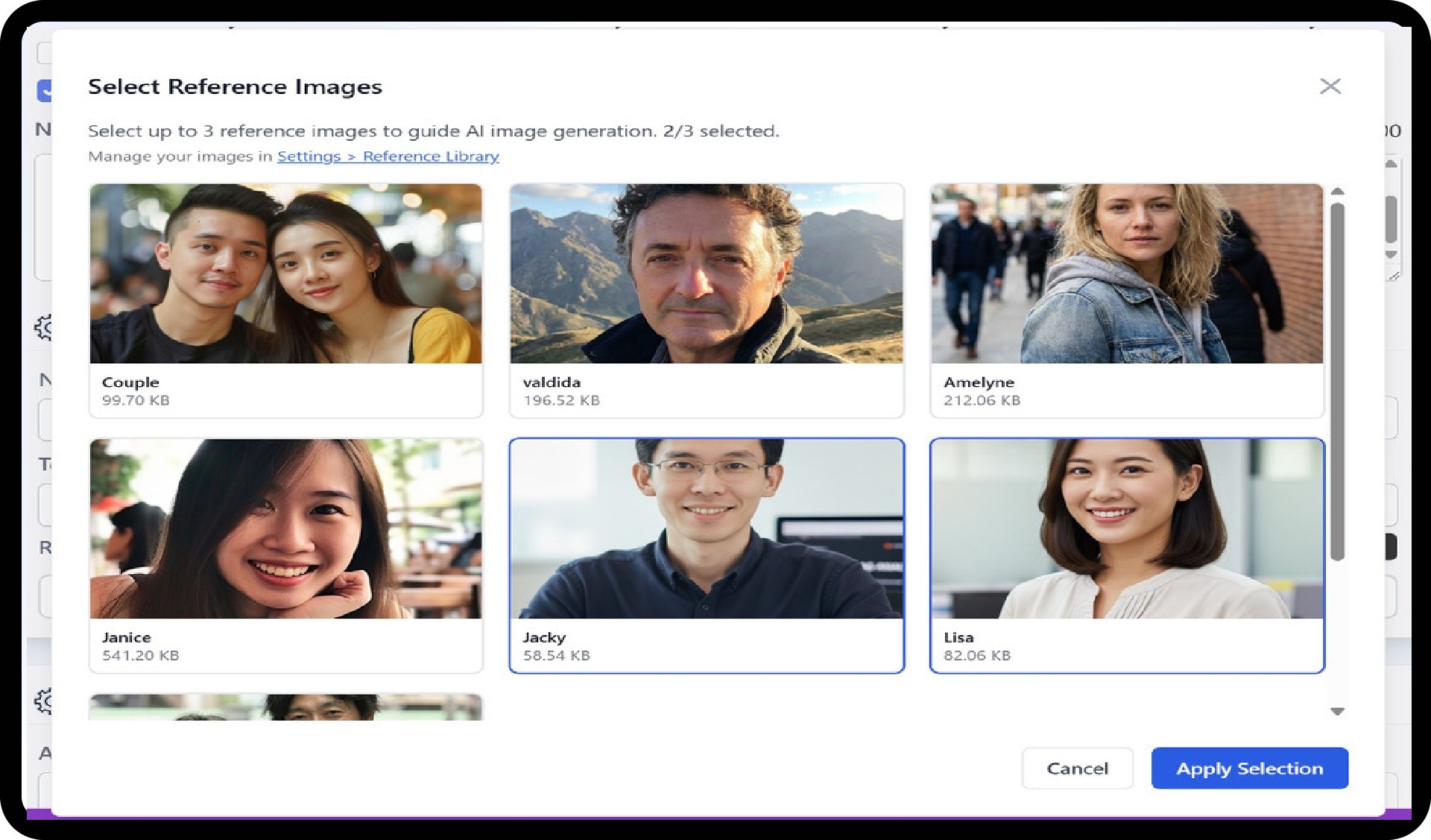
Select them when you write

In the article's Image Settings, find Reference Images, click Browse Images, and apply up to 3 from your library. The option appears when a Smart Visual image model is selected.

Smart Visual AI step 2: Select them when you write
03 / 03

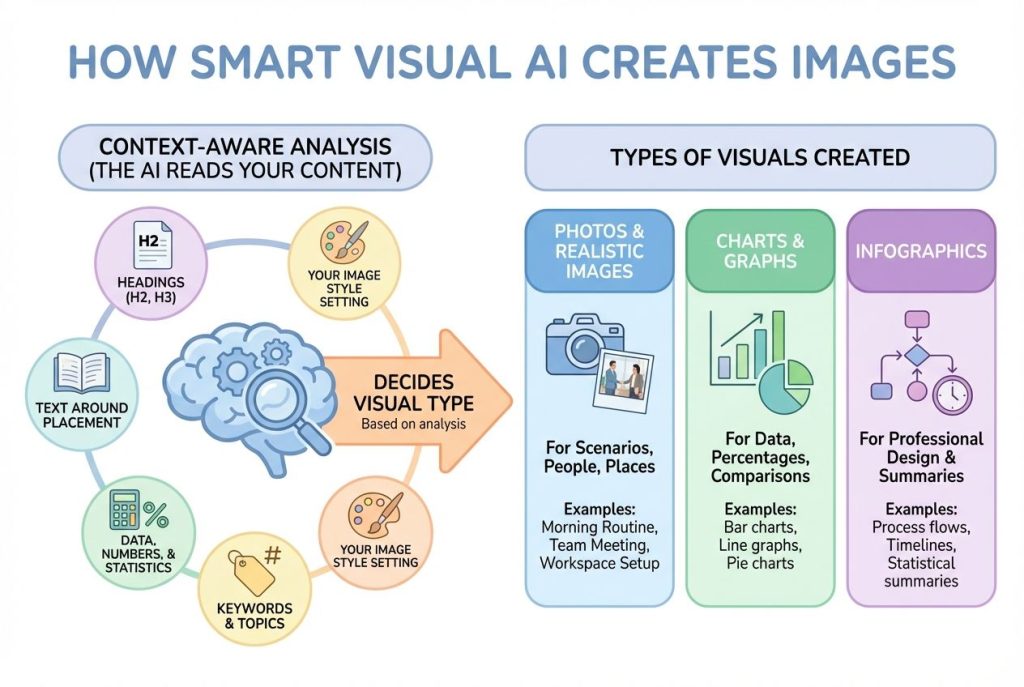
Generate and let it place visuals

The AI reads your article, decides where images belong and what kind each should be, then creates and places photos, charts, and infographics automatically.

Smart Visual AI step 3: Generate and let it place visuals

Smart Visual AI reads your finished article, works out where images belong and what kind each one should be, then generates and places them for you. Photos, charts, graphs, and infographics all come from the content itself, so there’s no separate image tool and no prompt writing.

How placement and face cloning work

The AI scans the text around each spot to choose the right visual: numbers become charts, descriptive passages become photos, and lists become infographics. When you add reference images, it detects the face and keeps that same person across every scenario in the article, drinking coffee, working, presenting, whichever the section calls for. You can use up to 3 reference images per article, which is the sweet spot for quality.

Where it runs
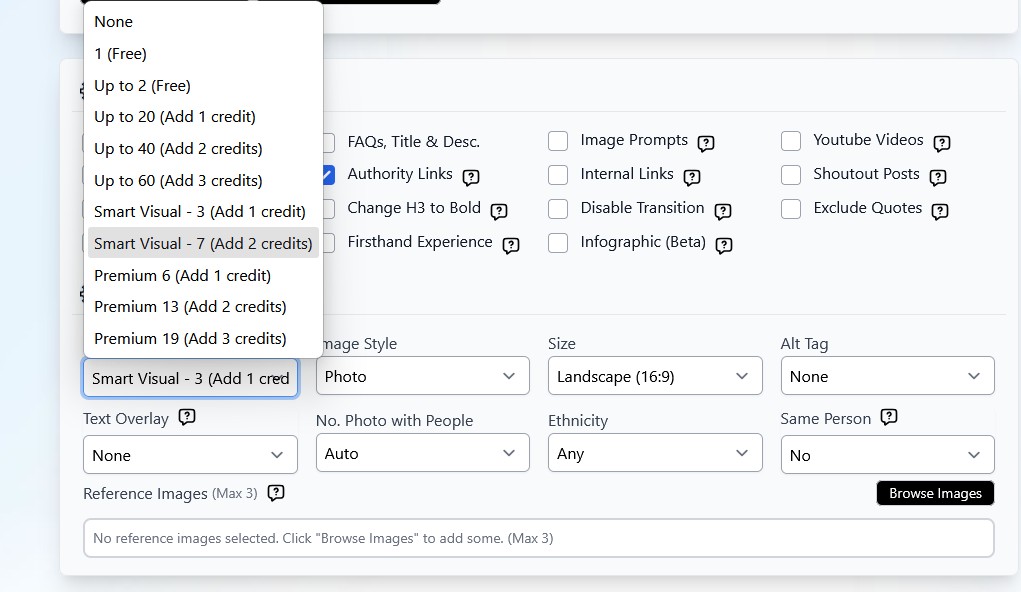
The writing modes where Smart Visual AI is available

Smart Visual AI works in Advanced Mode, Website Page, Rewrite, Optimize, and Product Roundup Review, where it can pull reference images from Amazon. It’s in beta: it works well most of the time, and reporting any issues to support helps it improve.

Everything in Smart Visual AI

Reference Library for your own headshots, products, and team photos

Realistic photos, charts, graphs, and infographics chosen from context

Automatic placement at the best spots in the article

Face cloning to keep one person consistent across visuals

Up to 3 reference images per article for best results

Works in Advanced, Website Page, Rewrite, Optimize, and Product Roundup modes

Powered by Nano Banana Pro, built for face cloning and professional photos

Smart Visual AI FAQs

What happens to my articles if I delete a reference image?
Nothing. Already-published articles keep their images. Only new articles are affected.
How many images will be generated?
Exactly 3 images for Smart Visual 3, or exactly 7 for Smart Visual 7. The count is fixed because of the credit pricing structure.
How does the AI decide between a photo and a chart?
It reads the content around each placement spot. Data and numbers trigger charts, descriptive text triggers photos, and lists trigger infographics.
Will the same person appear in all photos?
Yes, if you add reference images so it uses your uploaded faces, or set Same Person to Yes so it creates one consistent fictional person.
Does this work in all languages?
Yes. Smart Visual AI works with articles in any language.
Are the images copyright-free?
Yes. You own full rights to all generated images and can use them commercially.
How long does generation take?
Expect 5 to 10 minutes more than a regular article, since the AI is analyzing content, extracting data, and creating custom images.
Can I control where images are placed?
No, placement is automatic. But you can move images to different spots after the article is generated.
Can I use stock photos as references?
Yes, but your own photos or AI-generated images give better, more unique results.
How do I choose the best reference image?
Pick high-quality, front-facing photos with good lighting. Avoid sunglasses, hats, or anything covering the face. Business headshots work great.
Can I regenerate specific images?
Not yet. This may be added in the future.
Is Smart Visual AI available to everyone?
Yes, all users can access it. It's in beta, so if something goes wrong, report it to support so it can improve.
Available now, start in under 2 minutes

Ready to try Smart Visual AI?

Start your $1 trial. 5 credits, full access to Smart Visual AI & Reference Library and every other Agility Writer feature.

Cancel anytime
Credits roll over
Trustpilot 4.7/5